
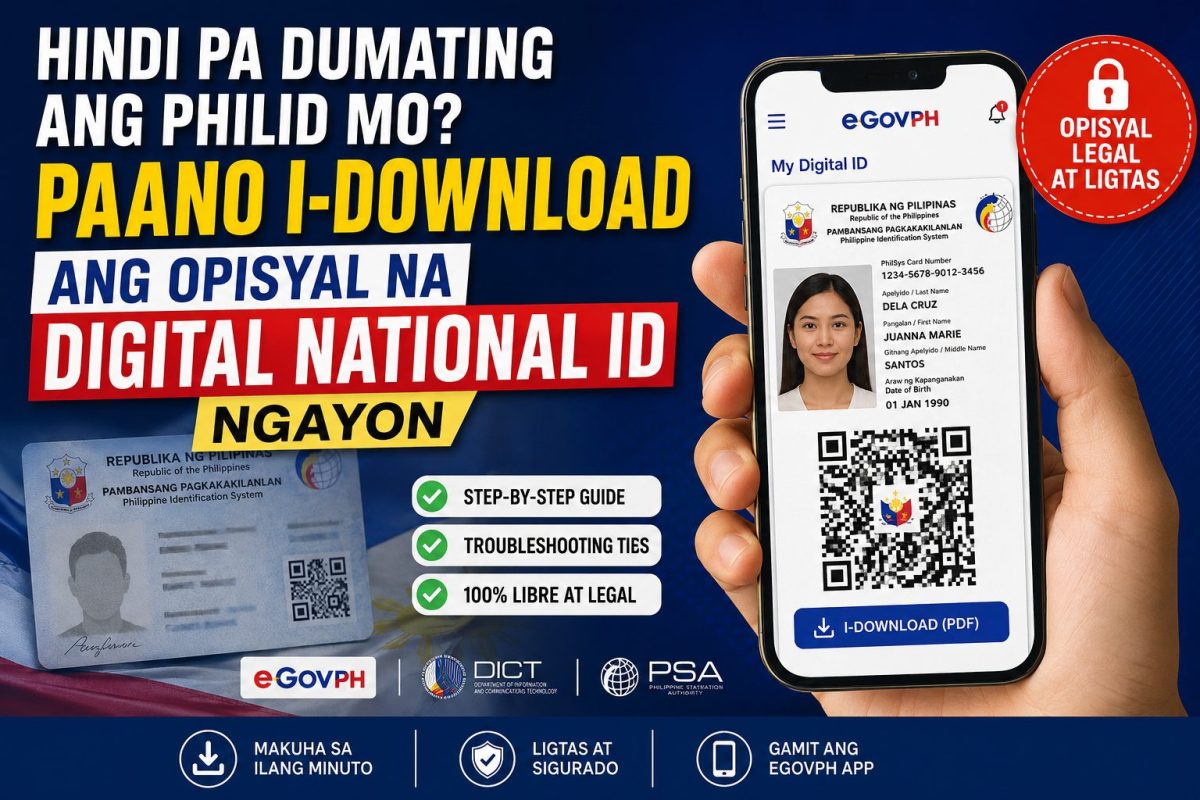
Still waiting for your physical PhilID card to arrive in the mail? You’re not alone. Millions of Filipinos have been stuck in the same boat, refreshing their PSA delivery status for months with nothing to show for it.
The good news is you don’t have to wait anymore. The Digital National ID Philippines is now live through the official eGovPH app, and this guide walks you through every step of getting it, fixing the errors that trip most people up, and using it safely once it’s on your phone.
Whether you’re applying for a passport, opening a bank account, or just tired of carrying a thick folder of IDs everywhere, this guide is for you. It’s also for anyone who’s already tried downloading their digital ID and hit a wall — we cover the exact fixes for that too.
By the end of this guide, you’ll know how to download the eGovPH app safely, complete your KYC verification without a face-mismatch error, understand exactly how much it costs (spoiler: nothing), and know where your Digital National ID is legally accepted.
Honestly, the rollout of physical PhilID cards has been one of the slowest government projects Filipinos have had to deal with. The Philippine Statistics Authority (PSA) has been printing and mailing polycarbonate cards one province at a time, and depending on where you live, that wait can stretch past a year. The Department of Information and Communications Technology (DICT) and PSA finally addressed this bottleneck in 2026 by pushing the Digital National ID through fully, and it’s changed how millions of Filipinos prove their identity.
Here’s what most guides won’t tell you: the digital version isn’t a placeholder or a “lite” version of your ID. It carries your full PhilSys Card Number (PCN), your registered photo, and a live, scannable QR code that any agency or bank can verify in real time. That QR code is actually harder to fake than a printed card in some ways, since it pulls directly from the PhilSys database instead of relying on a static image.
You don’t need to have already received your physical card to get the digital one. As long as your PhilSys registration is complete and in the PSA’s system, you can pair it to the eGovPH app right now, at no cost. There’s no need to visit a PSA office, no appointment to schedule, and no processing fee at any point in the process.
Picture this: a reader messaged us after waiting eight months for her physical card with zero updates. She downloaded the eGovPH app, completed verification in about fifteen minutes, and used the digital ID to open a savings account the next day. That’s the gap this guide is meant to close — you don’t have to keep waiting on the mail.
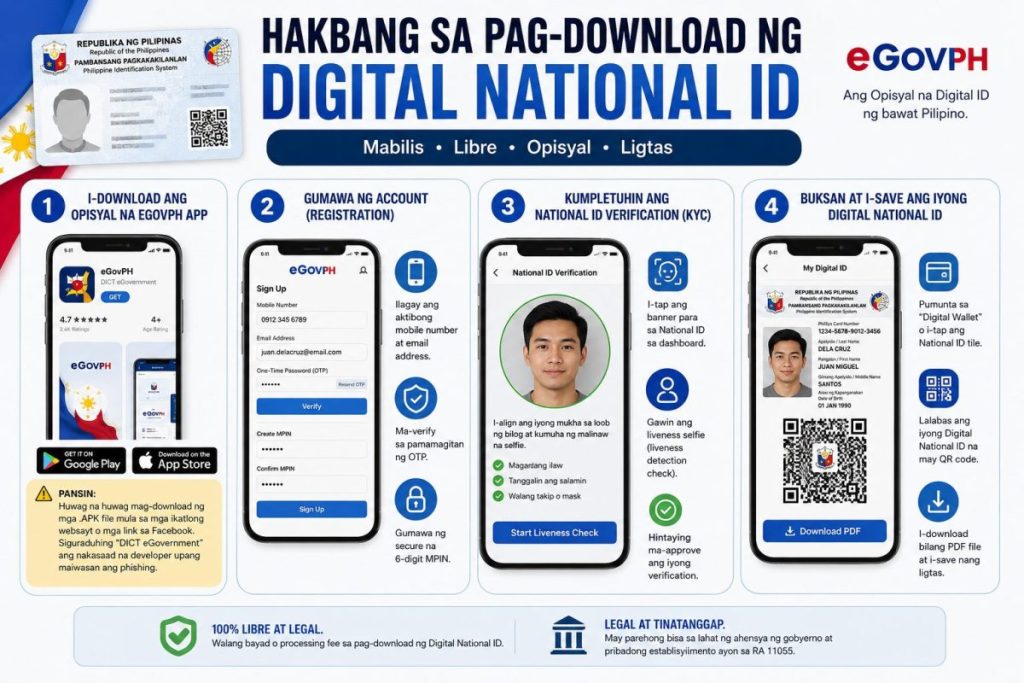
The first mistake most people make happens before they even open the app. Here’s what most guides won’t tell you: there are fake versions of eGovPH floating around Facebook groups and shady file-sharing sites, and some of them are built to steal your personal information the moment you install them. Before you tap install, you need to know exactly what you’re looking for.
Open the Google Play Store on Android or the Apple App Store on iPhone, then search for eGovPH. Check that the developer listed is “DICT eGovernment” — not “eGov PH Official,” not “PhilSys App,” and definitely not anything without a verified government badge. Once you confirm that, install it like any other app, but make sure you’ve got decent storage space and a stable connection before you start.
Registration itself won’t cost you a single peso, and it shouldn’t take more than five minutes. Open the app, tap “Sign Up,” and enter your active mobile number along with a working email address. You’ll get a one-time password (OTP) sent to your phone — type that in to verify your account, then set up a 6-digit MPIN that you’ll use every time you log back in.
Skip this if you’re in a rush and don’t have your own SIM registered under your name — the OTP won’t reach a number that isn’t active or properly registered. We’ve seen readers try to use a relative’s old SIM card and get stuck for days waiting on an OTP that never arrived. Use your own active number from the start and you’ll avoid that headache completely.
This is the step where most people either breeze through in two minutes or get stuck for an hour. Your KYC, or Know Your Customer verification, is what links your eGovPH account to your actual PhilSys record using facial recognition. The truth is, this step is stricter than most government processes you’ve dealt with before, and that’s by design — it’s what keeps your digital ID from being faked.
From the main dashboard, tap the banner labeled “National ID.” The app will ask you to take a live selfie, which it compares against the photo already on file from your PhilSys registration. This isn’t a simple photo upload — it uses liveness detection, meaning you might be asked to blink, turn your head slightly, or follow an on-screen prompt to prove you’re a real person and not a photo of a photo.
Once your face matches and the system approves you, head to the “Digital Wallet” section or tap the National ID tile again from the dashboard. Your Digital National ID will load with your photo, your PhilSys Card Number (PCN), and a scannable QR code that updates in real time. From there, you can download it as a PDF file straight to your phone’s storage, ready to show or print whenever you need it.
Already planning to use it for a bank appointment next week? Save the PDF somewhere you can find it quickly, like a dedicated folder or your phone’s home screen, instead of digging through your downloads folder while a teller waits. One reader told us she almost missed her account-opening slot because she couldn’t locate the file fast enough — a problem a 10-second folder setup would have solved.
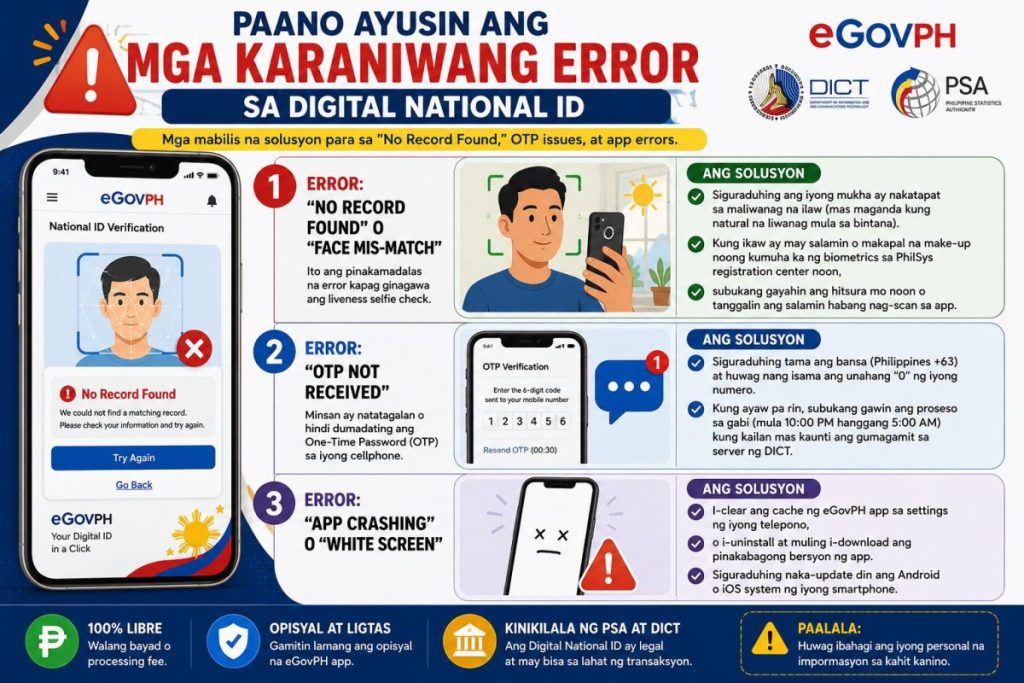
I’ve seen readers make this mistake over and over: they hit an error once, assume the whole system is broken, and give up. The truth is, almost every error in the eGovPH app has a specific, known fix. Let’s go through the three you’re most likely to run into.
The most common one is “No Record Found” or “Face Mismatch” during your liveness selfie. This usually happens because of lighting, or because your appearance has changed since your PhilSys registration photo was taken. Find a spot with even, natural light, remove your glasses if you wore them during registration, and try to keep a neutral expression close to your ID photo.
Next up is “OTP Not Received,” which is usually a formatting issue rather than a system outage. Make sure you’re entering your number with the +63 country code and dropping the leading zero — so 0917 becomes 917 when the app asks for it. If it still won’t come through, try again between 10 PM and 5 AM, when fewer people are using the DICT servers and requests tend to go through faster.
Last is the app simply crashing or showing a white screen, which is almost always a software issue rather than something wrong with your account. Go into your phone’s settings, clear the eGovPH app’s cache, and if that doesn’t work, uninstall it completely and reinstall the latest version from the official store. Sound complicated? It really isn’t — this fixes the issue for the vast majority of readers who write in about it.
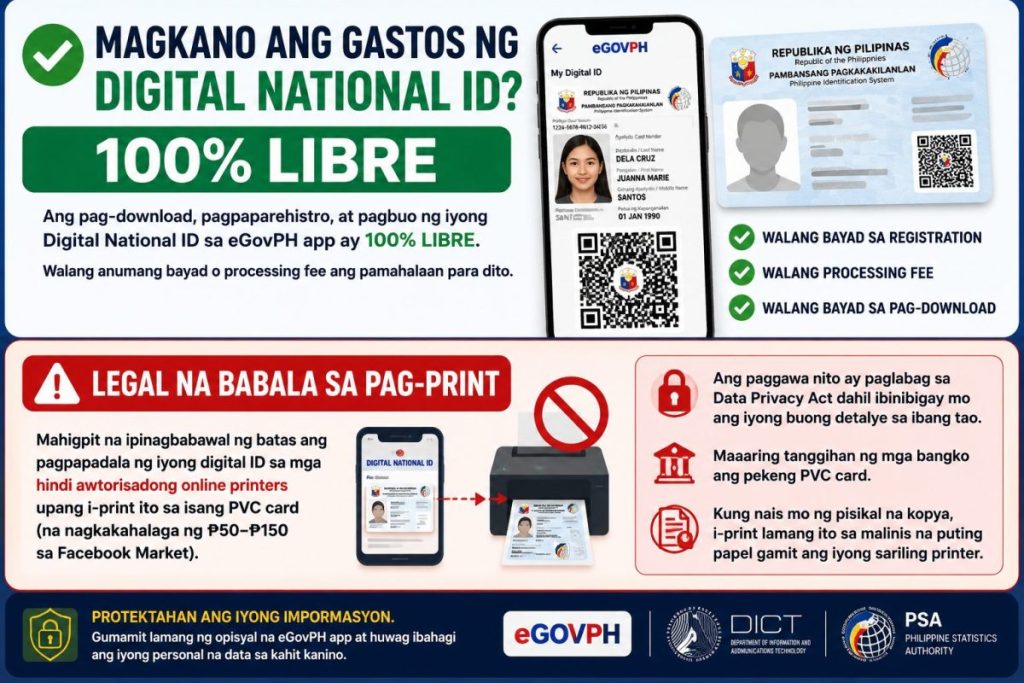
Here’s the part that surprises most first-time users: downloading, registering, and verifying your Digital National ID through eGovPH costs exactly ₱0. Not a processing fee, not a “rush fee,” not even a small convenience charge. If anything in the app or anywhere online asks you to pay for this step, you’re not dealing with the real government service anymore.
The only place money tends to come up is printing. Some Facebook Marketplace sellers offer to print your digital ID onto a PVC card for ₱50 to ₱150, and it’s tempting if you want something that feels more like a “real” card. Skip this if you value your personal data, though — sending your ID file to a random online printer means handing over your full name, photo, and PCN to someone with zero accountability.
There’s a legal angle here too that most people don’t think about. Under the Data Privacy Act, sharing your personal data with an unauthorized third party for processing like this puts your information at risk, and banks have started rejecting these unofficial PVC cards since they can’t verify them against PhilSys in real time. If you genuinely need a physical copy, just print the PDF at home on plain white paper — it’s accepted everywhere the digital version is.
The best part? You don’t need to spend anything to make this work for you long-term. One reader told us she almost paid ₱100 for a “premium laminated” version from an online seller before realizing her free PDF, printed at a local print shop for ₱5, did exactly the same job at her bank. Save your money — the free version is the official one.
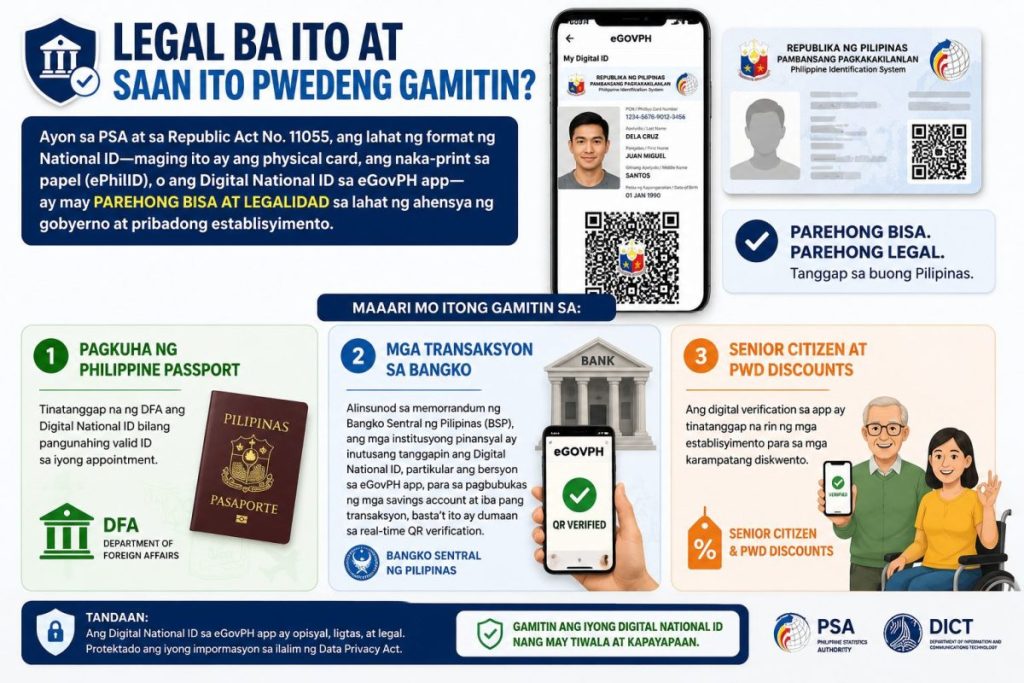
The truth is, a lot of people still treat the digital version like a backup option, something you’d only show if you forgot your physical card. That’s not how the law treats it. Under Republic Act No. 11055, the physical PhilID, the printed ePhilID, and the Digital National ID in the eGovPH app all carry the same legal weight across government agencies and private businesses.
That equal standing matters most when you’re applying for a Philippine passport. The Department of Foreign Affairs (DFA) accepts the Digital National ID as a primary valid ID at your appointment, which means you don’t need to track down a physical card before you can book your passport renewal or first-time application.
Banks are required to follow suit too. Under a memorandum from the Bangko Sentral ng Pilipinas (BSP), financial institutions are directed to accept the Digital National ID through eGovPH for opening savings accounts and other transactions, as long as the teller can run a real-time QR verification on the spot. Already planning to open an account this month? Bring your phone charged and your app updated — that’s really all you need.
Senior citizens and persons with disabilities can use the same digital verification for their discounts at participating stores, which cuts out the need to carry a separate physical ID just for that purpose. Skip the worry about losing a card in your wallet — as long as your phone is with you, your ID is too.
These small adjustments won’t cost you anything, but they’ll save you a lot of back-and-forth with the app.
You don’t have to keep waiting on a card that might take another year to arrive. Download the official eGovPH app, get through your KYC verification with the fixes in this guide, and start using your Digital National ID Philippines for banking, passport applications, and discounts today — all without paying a single peso.








 Facebook
 Twitter